Which Chipset Do I Have?
Checking Your Mac's Processor
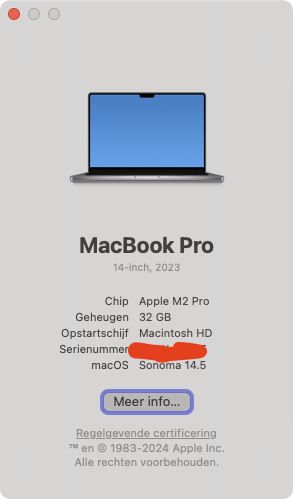
You can find out which chipset your Mac has by:
- Click the Apple logo in the top-left corner of your screen
- Select About This Mac
- Look for the Chip or Processor information
Processor Types
Apple Silicon
- M1 (2020-2021) - First generation
- M1 Pro/Max/Ultra (2021-2022) - Enhanced M1 variants
- M2 (2022-2023) - Second generation
- M2 Pro/Max/Ultra (2023) - Enhanced M2 variants
- M3 (2023-2024) - Third generation
- M3 Pro/Max (2023-2024) - Enhanced M3 variants
Intel
- Intel Core i5 - Mid-range
- Intel Core i7 - High performance
- Intel Core i9 - Highest performance
- Intel Xeon - Workstation/server class
Checking via Terminal
You can also check your chipset using the terminal:
Output:
- arm64 - Apple Silicon (M1/M2/M3)
- x86_64 - Intel processor (or running under Rosetta 2)
Check detailed processor info:
Check if running Rosetta 2:
Output:
- 0 - Running natively
- 1 - Running under Rosetta 2 translation
Why Does This Matter?
The chipset affects: - Software compatibility - Some apps require Apple Silicon or Intel - Development tools - Docker, Node, Python may need special configuration - Performance - Native vs emulated performance differences - Package managers - Homebrew uses different paths for each architecture
See Also
- Apple Silicon (M1/M2/M3) Macs - Development on Apple Silicon
- Docker - Docker platform configuration
- Lando - Local development environment